> For the complete documentation index, see [llms.txt](https://wiki.playgama.com/playgama/llms.txt). Markdown versions of documentation pages are available by appending `.md` to page URLs; this page is available as [Markdown](https://wiki.playgama.com/playgama/guides/performance-and-optimization/unity/unused-packages.md).
# Unused packages
* Remove the New Input System if it is not used
* Clean Quality and Graphics settings
* Delete unused Unity packages
Unused Unity packages can add several megabytes to a WebGL build even when the game does not use them.
**What to check first**
* Remove the New Input System if your game uses only the old Input Manager. This package alone adds around 2.4 MB.
* Delete packages that were added by default but not used:
* Visual Scripting
* XR / AR modules
* Analytics / Ads packages if not integrated
* If you use Cinemachine only for simple cameras, consider removing it and using a lighter setup.
* Clean Quality and Graphics settings. Built-in features such as shadows can pull extra shaders into the build.
**How to do**
* Open Package Manager and remove everything not required by gameplay.
* After removal, rebuild and test input, UI, and core mechanics.
**Example**
The example below uses an empty Unity project to show how each setting affects final WebGL build size.
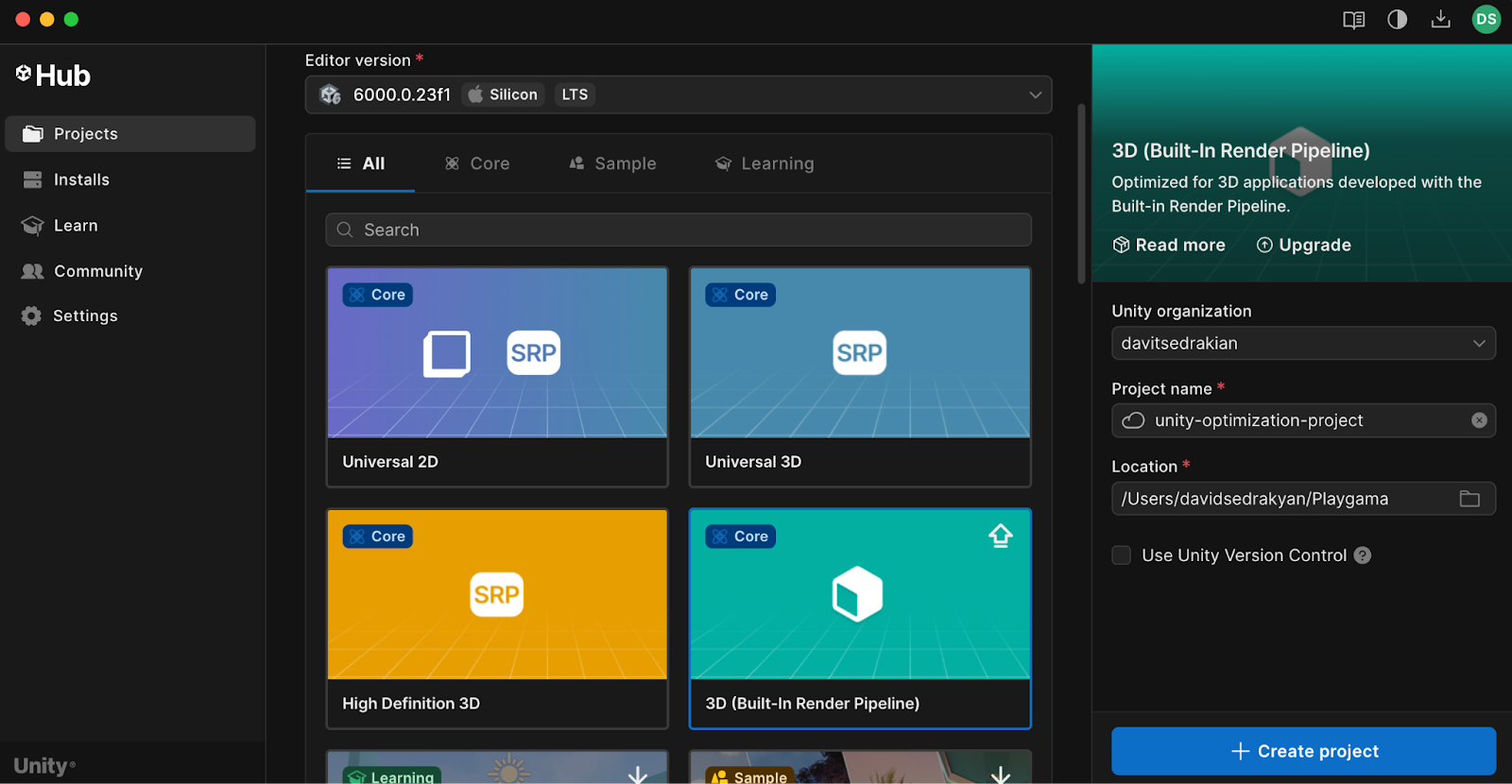
**Step 1:** Create an Empty Unity project for WebGL (we will use Unity 6000.0.23f1 + Built-In Render Pipeline)
**Step 2:** Switch platform to WebGL and make a build to check the default size
The initial build is around 9.7 MB, which is too large for a minimal WebGL project.
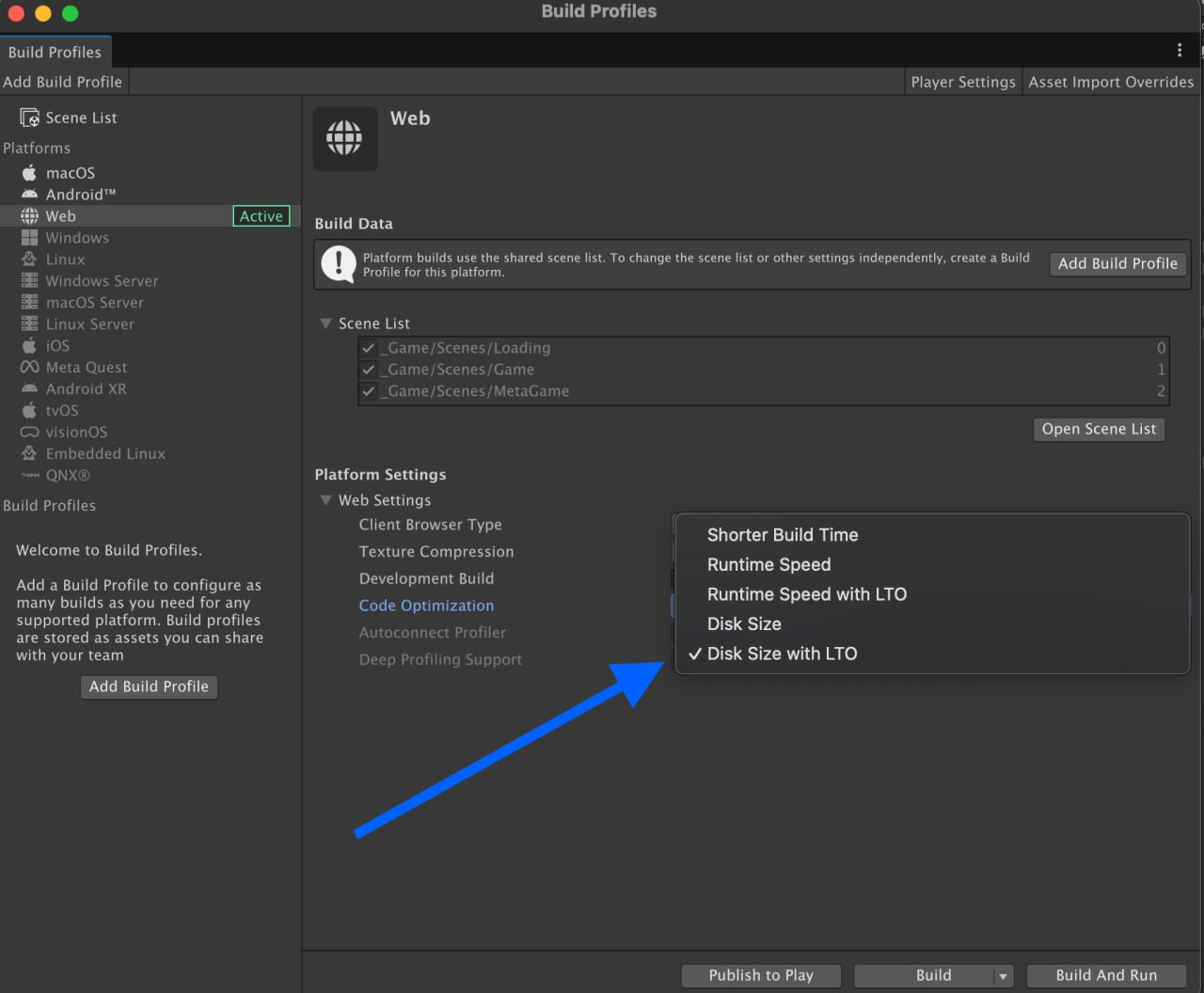
**Step 3:** First thing to do! Go to build settings and change “Code Optimization: Build Size with LTO”
The build size is now 9 MB.
**Step 4:** Go to Player Settings → set Compression: Brotli and enable Name files as hashes
The build is now 6.8 MB, reduced from 9.7 MB. Continue with the next settings.
**Step 5:** Now let’s change IL2CPP Code Generation to “Smaller Builds” and change C++ Compiler Configuration to Master
**Step 6:** Choose texture compression (ASTC / DXT / ETC2).\
Enable Crunch for textures when possible
**Step 7:** Set Color Space: Gamma if the game supports it (≈100 KB saving)
**Step 8:** Set Managed Stripping Level: High.\
Test the game after enabling stripping because it may remove required code.
Also enable texture mipmap stripping
**Step 9:** Remove unused features and packages
* Delete unused Unity packages
* Clean Quality and Graphics settings
* Disable built-in shadows if not required
New Input System adds **\~2.4 MB**.\
If the project does not use it, remove the package to reduce the build to \~2.2 MB.
After these changes, the build is reduced from about **10 MB** to about **2.2 MB**.