> For the complete documentation index, see [llms.txt](https://wiki.playgama.com/playgama/llms.txt). Markdown versions of documentation pages are available by appending `.md` to page URLs; this page is available as [Markdown](https://wiki.playgama.com/playgama/guides/monetization/in-game-purchases/unity.md).
# Unity
This guide shows how to integrate in-game purchases (IAP) into a Unity WebGL game with Playgama Bridge. The same payments API is available in other supported engines and JavaScript frameworks. Once integrated, purchases work across supported portals, including [Playgama.com](https://playgama.com/).
#### Understanding in-app purchases and pricing
In-app purchases (IAP) allow players to buy digital items or features directly within your game. The way you set prices for your IAP can vary depending on the platform where your game is published.
* Some platforms may require you to set prices directly in **real-world currency** (e.g., USD).
* Other platforms use a **virtual currency system**. In this case, set and display the price in that platform's currency, for example **Gam\*** for Playgama.com, **Yan** for Yandex. Players first acquire the platform currency and then spend it on items in your game.
(\* Note: The conversion rate between Gam and real-world currencies is managed by Playgama.com. As a baseline, 1 Gam equals 0.1 USD, so an item priced at 3.99 USD would cost approximately 40 Gam)
#### Prerequisites
Before you begin, make sure you have:
1. Downloaded and installed the latest **Playgama Bridge SDK** in your Unity project. See [SDK getting started](/playgama/bridge-sdk/getting-started.md).
2. Registered a developer account on the [**Developer portal**](https://developer.playgama.com/).
This guide references our [IAP Demo project](https://developer.playgama.com/qa-tool/cmfb6071i00e9pa0hzjj0fsdo), which showcases a basic integration using the Playgama Bridge SDK.
#### Step 1: Define your IAP types and items
First, decide which purchase types your game will offer. Playgama Bridge supports two main types:
* **Consumable:** single-use items, such as coins, gems, or boosters. They can be purchased repeatedly and are ideal for temporary boosts or resource refills.
* **Permanent:** items that remain with the player, such as ad-free mode, skins, or characters. They can be purchased only once.
Understanding this difference will help you design a clear, player-friendly IAP strategy.
Next, create a list of IAP items and assign a unique `id` to each item. This `id` is used consistently across platforms and in your code.
**Important:** Use only letters, numbers, and underscores (`_`) in IDs. Do not use spaces or hyphens.
**Example IAPs for our Demo game:**
* `NO_Ads`: A permanent item that removes advertisements after one purchase.
* `100_Coins`: A consumable item that grants 100 units of the demo's in-game currency and can be purchased repeatedly.
#### Step 2: Configure IAP in `playgama-bridge-config.json`
{% hint style="warning" %}
Step for those publishing on their own, without uploading the game to Playgama
{% endhint %}
Use the [config editor](https://playgama.github.io/bridge-config-editor/) to create or update `playgama-bridge-config.json` in your Unity project. This file tells the SDK about your purchasable items on different platforms.
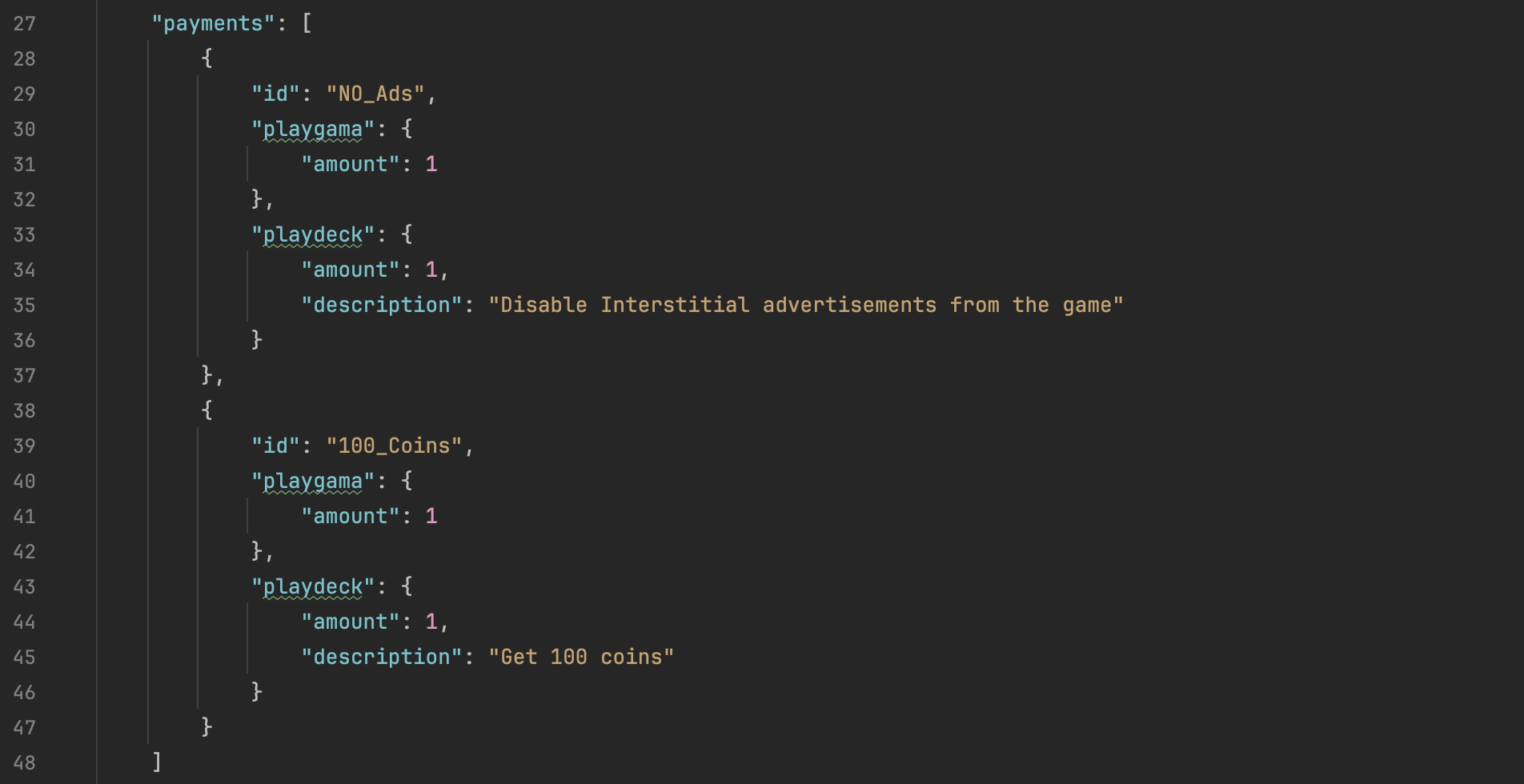
Add your IAP definitions to the `payments` array in the config editor. Here’s the generated JSON structure based on our Demo project:
```javascript
"payments": [
{
"id": "NO_Ads"
},
{
"id": "100_Coins"
}
]
```
**Key configuration fields:**
* `id`: The primary identifier used in game code to reference this IAP. Make it descriptive, for example `REMOVE_ADS` or `PACK_100_GEMS`. Later, this ID is used to get purchase names and prices in the game.
Prices, names, and descriptions are not stored in the config. Fill them in the developer dashboard of every platform you publish on (Playgama, Yandex, etc.), using the same ids. If a platform requires a different product id, add it under that platform's key next to the product, for example `"yandex": { "id": "yandex_no_ads" }`.
Replace the example IAPs in the `payments` section with your own game's items.
#### Step 3: Implement IAP Logic in Unity
With the configuration complete, let's integrate the IAP functionality into your Unity project. We'll use the `PlaygamaIAP.cs` script provided in the demo project as a foundation. While this script covers the essential calls, you may want to refactor or build upon it for a production-ready implementation.
**Initialization and catalog fetching:**
The core logic typically starts by fetching the available product catalog from the Playgama Bridge SDK. This retrieves details like localized names and prices for the IAPs you defined in the JSON file.
```csharp
private void Start()
{
// Initialize No-Ads text based on saved flag
UpdateNoAdsAvailableText(isNoAdsBought);
// Fetch the product catalog
Bridge.payments.GetCatalog(OnGetCatalogCompleted);
}
```
Inside `Start`, initialize `NoAdsAvailableText`, then load the catalog with `Bridge.payments.GetCatalog` and the `OnGetCatalogCompleted` callback.
Inside `OnGetCatalogCompleted`, read catalog information and display it in the demo UI.
#### Step 4: Trigger Purchases from UI Elements
Add UI elements, usually buttons, that let players start purchases. In this example, the button calls `InitiatePurchase` with the purchase ID.
```csharp
public void InitiatePurchase(string id)
{
// Show spinner & start the purchase flow
iapLoading.SetActive(true);
currentPurchaseId = id;
Bridge.payments.Purchase(currentPurchaseId, OnPurchaseCompleted);
}
```
Here is the full script for the `IAPButton` class:
{% file src="/files/IOoWtcWpvM0BvzO9DeQ1" %}
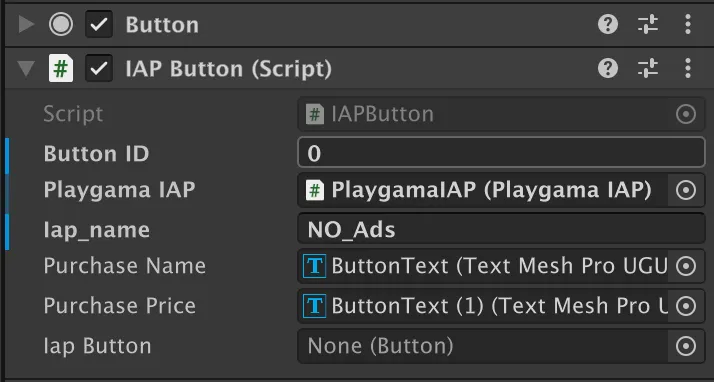
Add the **IAPButton.cs** script to the same GameObject that has the Button component, as shown below:
In **IAPButton.cs**, the purchase button calls the IAP logic in **PlaygamaIAP.cs**. The `RefreshButton()` method updates the purchase name and price.
```csharp
private void OnEnable()
{
playgamaIAP.OnPurchasesLoaded.AddListener(RefreshButton);
}
private void OnDisable()
{
playgamaIAP.OnPurchasesLoaded.RemoveListener(RefreshButton);
}
public void RefreshButton()
{
purchaseName.text = playgamaIAP.GetPurchaseNameById(id);
purchasePrice.text = playgamaIAP.GetPurchasePriceById(id);
}
```
In this example, the button subscribes and unsubscribes to the `OnPurchasesLoaded` event. `RefreshButton` updates the button text.
So, essentially, when the user clicks the button, in our Demo project the function with the parameter `"NO_Ads"` (or `"100_Coins"`) is called, and we initiate the purchase via the **PlaygamaIAP.cs** script.
#### Step 5: Handle Purchase Completion and Consumption
The final step is handling the purchase result in your main IAP script. Let’s look at the `InitiatePurchase(string id)` function used by **IAPButton.cs**.
```csharp
public void InitiatePurchase(string id)
{
// Show spinner & start the purchase flow
iapLoading.SetActive(true);
Bridge.payments.Purchase(id, OnPurchaseCompleted);
}
```
As shown in Step 4, your UI button calls the `InitiatePurchase` method in **PlaygamaIAP.cs**. The `id` parameter is the value defined in `playgama-bridge-config.json`, for example `NO_Ads` or `100_Coins`.
Set this ID for each supported platform. It can be the same across platforms.
The `id` is typically set in the Unity Editor for each `IAPButton` through a `[SerializeField]` field:
The `InitiatePurchase` function and `OnPurchaseCompleted` callback in **PlaygamaIAP.cs** start the purchase flow and process the result.
```csharp
public void InitiatePurchase(string iapName)
{
// Show spinner & start the purchase flow
iapLoading.SetActive(true);
Bridge.payments.Purchase(iapName, OnPurchaseCompleted);
}
private void OnPurchaseCompleted(bool success, Dictionary purchase)
{
// Hide spinner after a moment
Invoke(nameof(InvokeDisable), 1f);
if (!success) return;
if (purchase != null && purchase.TryGetValue("id", out var id) && !string.IsNullOrEmpty(id))
{
Debug.Log($"OnPurchaseCompleted ({id}) successfully,");
if (id == "NO_Ads")
{
// Non-consumable: NO ADS
isNoAdsBought = true;
UpdateNoAdsAvailableText(true);
Debug.Log("NO_Ads purchased. Disabling ads.");
}
else
{
// Consumable: consume to grant items/currency
Bridge.payments.ConsumePurchase(id, OnConsumePurchaseCompleted);
}
}
else
{
Debug.LogWarning("Purchase payload missing 'id' or it is empty. Skipping.");
}
}
private void OnConsumePurchaseCompleted(bool success, Dictionary purchase)
{
if (!success) return;
if (purchase != null && purchase.TryGetValue("id", out var id))
{
Debug.Log($"OnConsumePurchaseCompleted ({id}), success: {success}");
if (id == "100_Coins")
{
coinAmount += 100;
coinAmountText.text = "Balance: " + coinAmount + " Coins";
}
else
{
Debug.Log($"Unhandled purchase id: {id}");
}
}
else
{
Debug.LogWarning("No 'id' key found in purchase dictionary.");
}
}
```
`OnPurchaseCompleted` runs when the platform finishes processing the purchase request. It checks the `success` flag. If `false`, the purchase failed and the function exits. If `success` is `true`:
* It checks whether the `id` is `NO_Ads`. If so, it is a **permanent item**. The game sets `isNoAdsBought` to `true` and refreshes the UI with `UpdateNoAdsAvailableText(true)`. Save this state persistently.
* If the `id` is not `NO_Ads`, for example `100_Coins`, it is treated as a **consumable item**. In this case, `Bridge.payments.ConsumePurchase()` is called. This tells the platform that the item was delivered and allows the player to buy it again.
**Important:** Always call `ConsumePurchase` for consumable items after a successful purchase callback. If you do not consume the purchase, the player may be unable to buy the item again and the platform may treat the item as undelivered.
#### Step 6. Configuring IAPs on Playgama
{% hint style="warning" %}
Step for those uploading the game to Playgama.
{% endhint %}
When adding a game in the [Playgama developer dashboard](https://developer.playgama.com/), select **In-Game Purchases** in the Game Features section.
You'll have the option to import your purchase list from a file or set them up manually. If you have a file matching the template shown in the upload window, go ahead and import it.
If you prefer manual entry, click **Manual Setup** and fill in the required fields for each purchase (Product ID, Price, Purchase Type, and description fields).
Repeat this for every purchase available in your game. Double-check that all purchases are configured correctly.
Once everything looks good, you can test the game — all configured purchases will be automatically converted to Playgama's internal currency.
#### Step 7: Testing Your Integration
Once you have implemented steps above and built the game, you are able to test yout **QA Tool** in the [Playgama Developer portal](https://developer.playgama.com/).
Once you've implemented the steps above and built the game, you can test your game and in-app purchases right inside the QA Tool.
Testing in QA ensures your IAPs work as expected before release.
* **Test Purchases:** All purchases made through the QA Tool are "testing" transactions. You will not be charged any real money during this testing phase.
* **Permanent purchase outcome:**
* For a permanent purchase, the QA Tool logs should show a "Success" payment message.
* **Consumable purchase outcome:**
* For a consumable purchase, the QA Tool logs should show a "Success" payment message followed by a "Success" consume message.
* **Important Reminder:** For consumable items, it is crucial to call the `ConsumePurchase` method immediately after a successful purchase confirmation.
Contact your [Developer Success Manager](mailto:developer.success@playgama.com) if you need help.